PocketSEOPocketSEO

Best Technical SEO Tips (2026)

16 tips · ~26 min read · 6,344 words · Updated 2026

Technical SEO is the backbone of every site that ranks. Without a crawlable, indexable, and structurally sound foundation, no amount of content or links will move the needle. The tips below cover crawl budget optimization, canonical tags, site architecture, robots.txt configuration, and the structural signals that search engines rely on to understand and rank your pages. Every tip comes from a practitioner who has implemented it on a real site.

Advanced Long-term

Why do rankings drop in the first place?

Traffic losses rarely have a single cause. Most drops trace back to a mix of technical decay, content that's gone stale, a weak link profile, or indexing problems that compound quietly over time. Before you fix anything, you need to know which category you're dealing with.

Here's the process a specialist SEO agency uses to diagnose and recover lost rankings — broken into six stages you can apply to your own site.

What does a full SEO audit actually cover?
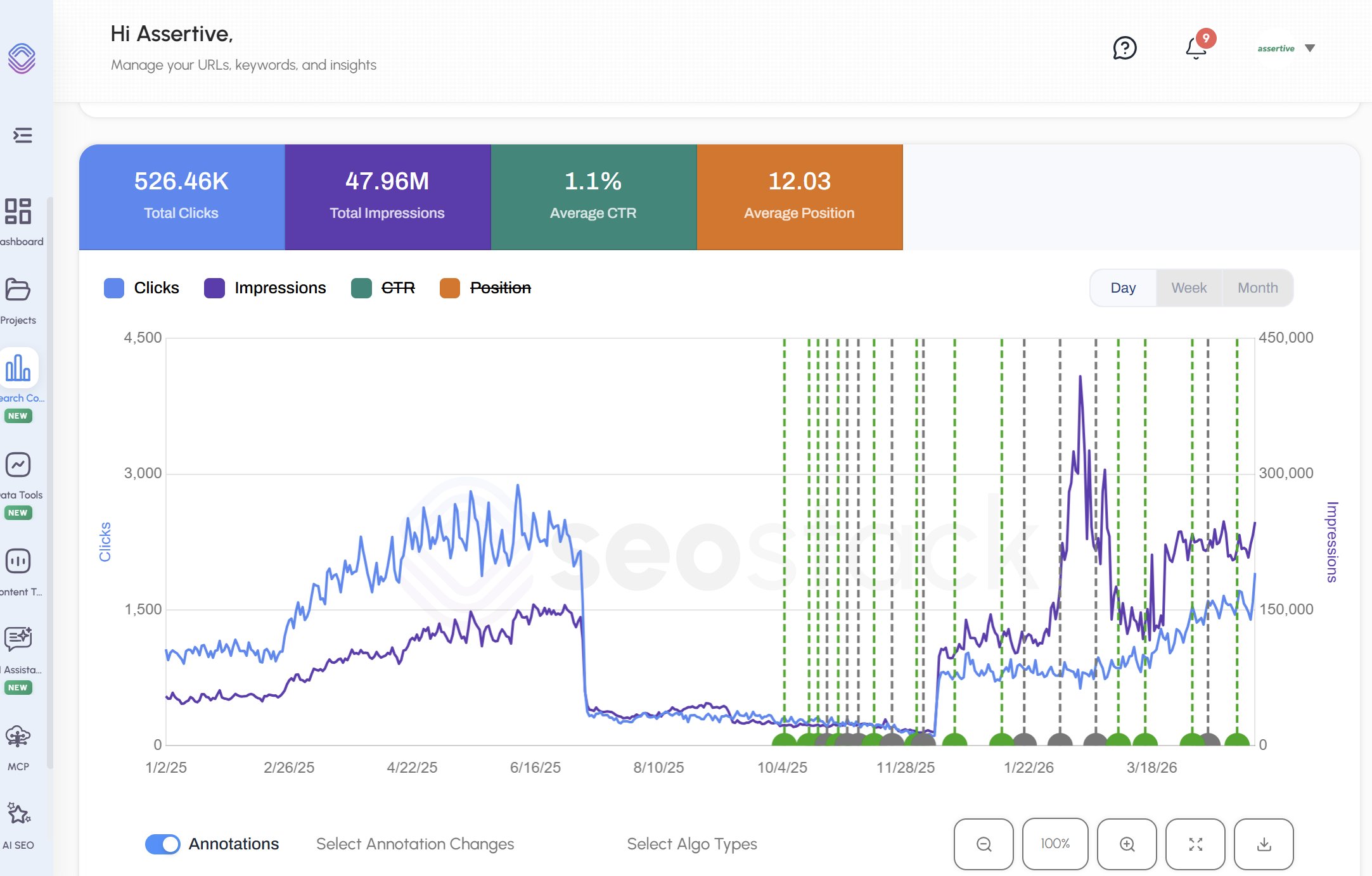
How to diagnose and recover lost SEO rankings: a step-by-step framework

A proper audit isn't one thing — it's seven parallel checks:

  • Search Console data: impressions, clicks, crawl errors, manual actions
  • Technical SEO: rendering, HTTP headers, URL structure, directives
  • Page indexing: which pages are indexed, which aren't, and why
  • Performance and rendering: how Google sees your pages vs. how users do
  • Content: quality, freshness, depth, NLP signals, engagement metrics
  • Link profile: domain authority, anchor distribution, accruement rate, topical trust flow
  • User experience: scroll depth, click patterns, bounce behavior via tools like Microsoft Clarity and GA4

Running these in parallel saves weeks compared to a sequential approach.

How do you find where traffic actually dropped?

Segmenting your data is what separates a guess from a diagnosis. Break performance into:

  • Brand vs. non-brand queries — brand drops often signal reputation or SERP feature changes; non-brand drops usually point to content or technical issues
  • Subfolder performance — losses concentrated in /blog/ vs. /products/ vs. the root point to different fixes
  • Year-over-year click gap (last 3 months) — removes seasonality from the picture
  • Pre and post core update segments — if a drop aligns with a Google algorithm update date, that's diagnostic information

According to Google's own documentation, core updates specifically reassess content quality signals across an entire site — so a broad drop after an update date is a strong signal to prioritize content quality fixes.

How do you rule out the most common causes?

Before building a recovery plan, eliminate the obvious culprits:

  1. Spam issues — check for spammy inbound links or low-quality content that may have triggered a manual action
  2. Technical problems — broken internal links, crawl blocks, rendering failures, or misconfigured redirects
  3. Indexing issues — pages marked noindex, duplicate content problems, or canonicalization errors pulling pages out of the index
  4. Content quality — thin content, outdated information, poor readability, weak NLP signals
  5. Link quality — toxic anchor profiles, a stalled accruement rate, or referring domains that have lost their own traffic

Check Search Console's Coverage and Manual Actions reports first. Then cross-reference with your crawl tool of choice (Screaming Frog, Sitebulb, etc.).

What should a recovery strategy look like?

Once you know what's broken, build a parallel workstream so fixes happen simultaneously rather than sequentially:

  • Technical track: prioritize highest-impact fixes first (indexing blocks, rendering issues, internal linking). Log each fix with an annotation in GA4.
  • Content track: identify underperforming URLs by segment, update stale content, improve depth and structure, then monitor query count changes per URL
  • Link track: build a proper link earning strategy targeting topically relevant referring domains, not just raw domain count
  • Measurement track: track query counts at the URL, URL group, and domain level — not just overall traffic, which masks what's actually moving

How do you know if recovery is working?

Track these specific KPIs rather than overall traffic:

  • Query counts per URL and URL group
  • Non-brand impressions and clicks
  • Index coverage rate (indexed vs. submitted pages)
  • Engagement metrics per content segment (scroll depth, time on page)
  • New link accruement rate month over month

Annotate every significant change in GA4. Without annotations, you can't connect cause and effect when rankings shift.

Ranking recovery isn't fast — most algorithm-related losses take three to six months to reverse after fixes are in place. But the diagnosis phase, done properly, tells you exactly where to spend that time.

Want the full playbook? Read our guide on Google Search Console: Setup to Your First SEO Win (20-Minute Guide).

Key Takeaway

Recovering lost SEO rankings requires diagnosing the root cause before making any fixes. Segment your Search Console data by brand vs. non-brand, subfolder, and core update dates to pinpoint where losses occurred. Then work through five areas in parallel: technical SEO, content quality, link profile, indexing health, and user engagement. Track recovery using query counts at the URL level and log every change with annotations, not just overall traffic.

Source: @foley_seo on Twitter/X

Full tip page
Beginner Quick Win

What is the Cloudflare AI bot policy and why does it matter for SEO?

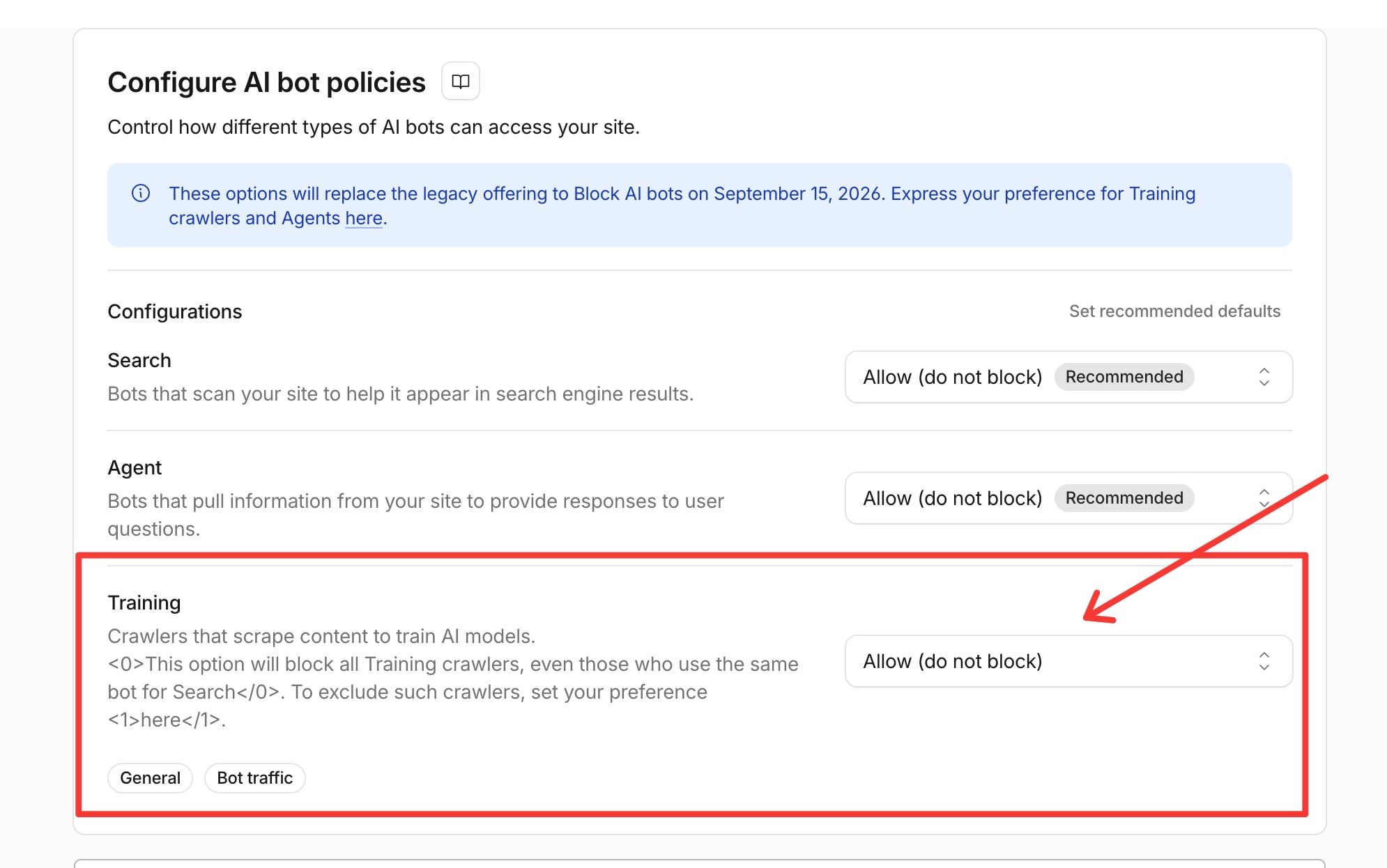
Cloudflare added an AI bot management feature that lets site owners block crawlers used for AI training. The problem: the 'block training' option doesn't just block AI scrapers. It also blocks crawlers classified as multi-purpose, meaning bots that combine search indexing with training data collection.

Googlebot, Applebot, and BingBot all fall into this category.

If you have 'Block' selected under the Training section of Cloudflare's AI bot policies, those crawlers will be denied access to your site. No crawling means no indexing. No indexing means your pages disappear from search results.

How do you check and fix this setting?

Cloudflare AI Bot Policy Could Block Googlebot — Fix It Now

  1. Log in to your Cloudflare dashboard
  2. Select the domain in question
  3. Go to SecuritySettings
  4. Find Configure AI bot policies
  5. Under the Training section, confirm 'Allow (do not block)' is selected
  6. Save your changes

That's the entire fix. Takes under two minutes.

Who does this affect?

Anyone running a site behind Cloudflare who may have turned on bot blocking without fully reading the implications. This is common if you or a developer enabled the setting after seeing news about AI companies scraping content for model training. The intent was reasonable; the side effect was not.

According to W3Techs, Cloudflare is used as a reverse proxy by over 19% of all websites, making this a widespread risk for site owners who aren't actively monitoring their crawl settings.

What should you tell your developer?

If you don't have direct access to Cloudflare, send your developer or DevOps team this exact path:

Security → Settings → Configure AI bot policies → Training → Set to 'Allow (do not block)'

Ask them to confirm the change is saved and check Google Search Console shortly after to verify Googlebot is still crawling normally. You can do this under Settings → Crawl stats in Search Console.

How do you confirm Googlebot can still access your site?

After updating the setting, run a quick check:

  • Open Google Search ConsoleSettingsCrawl stats and look for recent Googlebot activity
  • Use the URL Inspection tool on a key page and hit 'Test Live URL' to confirm Google can fetch it
  • Check your server logs for Googlebot user-agent hits if you have log access

If crawl activity dropped off recently and you have Cloudflare blocking enabled, this is likely the cause.

Want the full playbook? Read our guide on Google Search Console: Setup to Your First SEO Win (20-Minute Guide).

Key Takeaway

Cloudflare's AI bot policy 'block training' option also blocks Googlebot, Applebot, and BingBot because they are classified as multi-purpose crawlers that combine search with training. To prevent your site from being deindexed, go to Security → Settings → Configure AI bot policies in Cloudflare and set the Training section to 'Allow (do not block)'. Confirm the fix worked by checking crawl stats in Google Search Console.

Source: @suganthan on Twitter/X

Full tip page
Beginner Quick Win

Why does an HTML sitemap matter more for new, low-authority sites?

Most SEOs set up an XML sitemap, submit it to Google Search Console, and call it done. That's fine for established sites. For a brand-new site with little to no authority, it's the wrong priority.

An XML sitemap is a signal to Google — it tells crawlers which URLs exist. But Google still needs a reason to follow and index those URLs. On a low-authority site with few backlinks and minimal crawl budget, Googlebot visits infrequently and may not act on your XML sitemap for weeks.

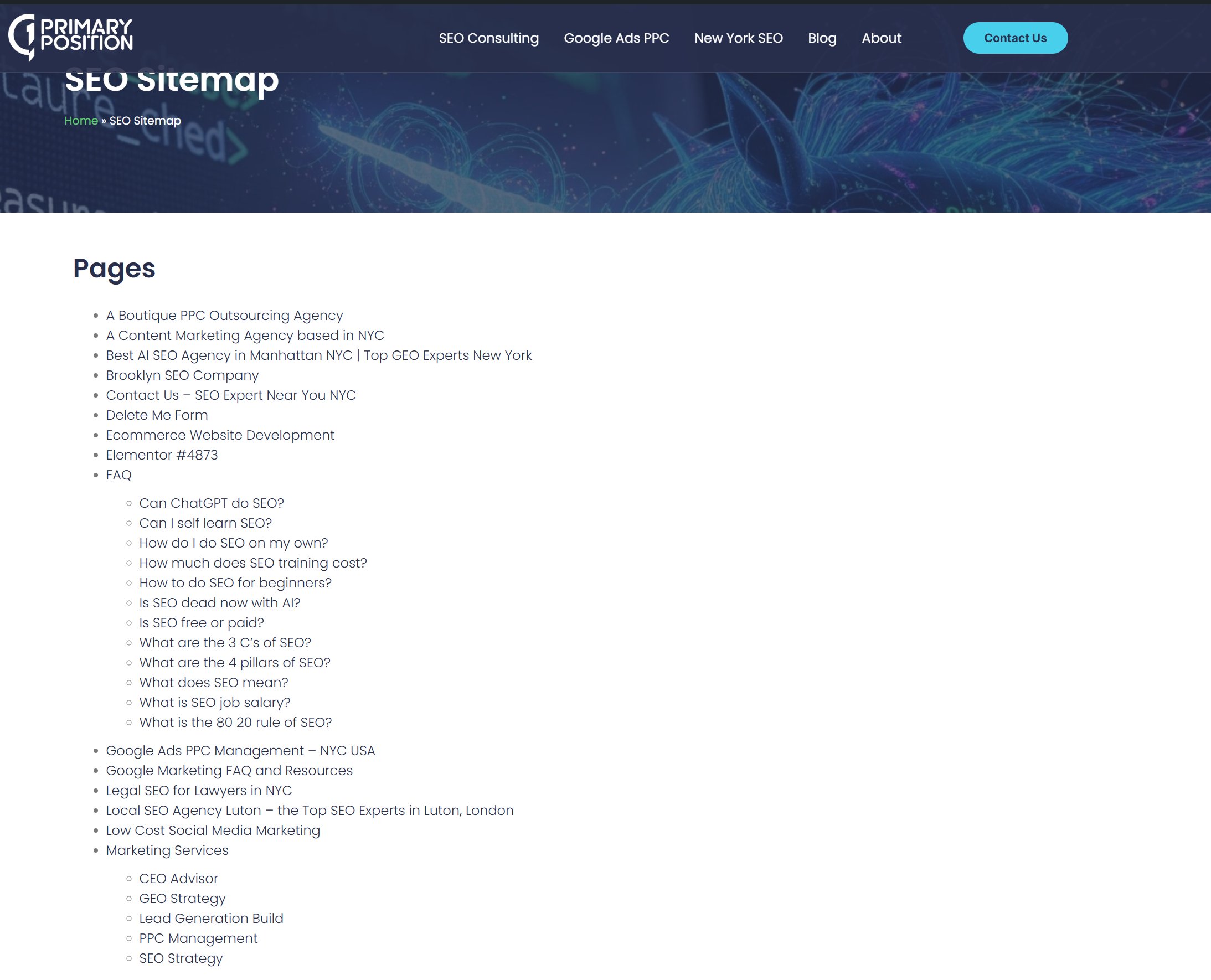
An HTML sitemap solves a different problem: it creates real internal links that crawlers can follow during any visit to your site.

How does an HTML sitemap actually help with crawling?

New site? Your HTML sitemap matters more than your XML one

When Googlebot lands on your homepage, it follows links in the page's HTML. An HTML sitemap — a regular page on your site with links to every other important page — acts as a crawl highway. Every time Google hits that one page, it can reach your entire site in a single hop.

This matters because:

  • Internal links pass PageRank, even small amounts. XML sitemaps do not.
  • A new site's homepage often has the most crawl authority. Linking from there to an HTML sitemap multiplies that reach.
  • Orphan pages (pages with no internal links pointing to them) are common on new sites. An HTML sitemap fixes that immediately.

According to Google's own crawling documentation, Googlebot discovers URLs primarily through links found on pages it already knows — not just through sitemap files.

What should you actually do?

  1. Build the HTML sitemap first. Create a /sitemap/ or /site-map/ page that links to every key section and page on your site.
  2. Link to it from your footer. Footer links appear on every page, giving the HTML sitemap consistent crawl signals across your entire domain.
  3. Keep it clean. Only link to indexable, canonical URLs. Skip parameter URLs, pagination, or pages you've marked noindex.
  4. Then set up the XML sitemap. Submit it in Search Console as normal. The two work together — but the HTML sitemap does more heavy lifting early on.

Does this mean XML sitemaps are useless for new sites?

No. Set up your XML sitemap anyway — it takes minutes and costs nothing. But don't assume submitting it means Google will crawl your site quickly. On a new domain, crawl budget is tight and trust is low.

The HTML sitemap is something crawlers can act on immediately, every visit, without needing to check a separate file. For a site trying to get its first 20 or 50 pages indexed, that difference is real.

Once your site gains authority and earns more frequent crawls, the XML sitemap becomes more valuable. Think of the HTML sitemap as the foundation you build on while you're getting there.

Want the full playbook? Read our guide on Google Search Console: Setup to Your First SEO Win (20-Minute Guide).

Key Takeaway

For new, low-authority websites, an HTML sitemap is more effective than an XML sitemap at getting pages crawled and indexed. XML sitemaps signal URLs to Google but do not pass PageRank or guarantee frequent crawls. An HTML sitemap creates real internal links that Googlebot follows on every visit, fixes orphan pages, and distributes crawl equity across the site. Build and link to the HTML sitemap from your footer first, then set up the XML sitemap as a secondary support measure.

Source: @DavidGQuaid on Twitter/X

Full tip page
Intermediate Long-term

Why does Google limit your Search Console data access?

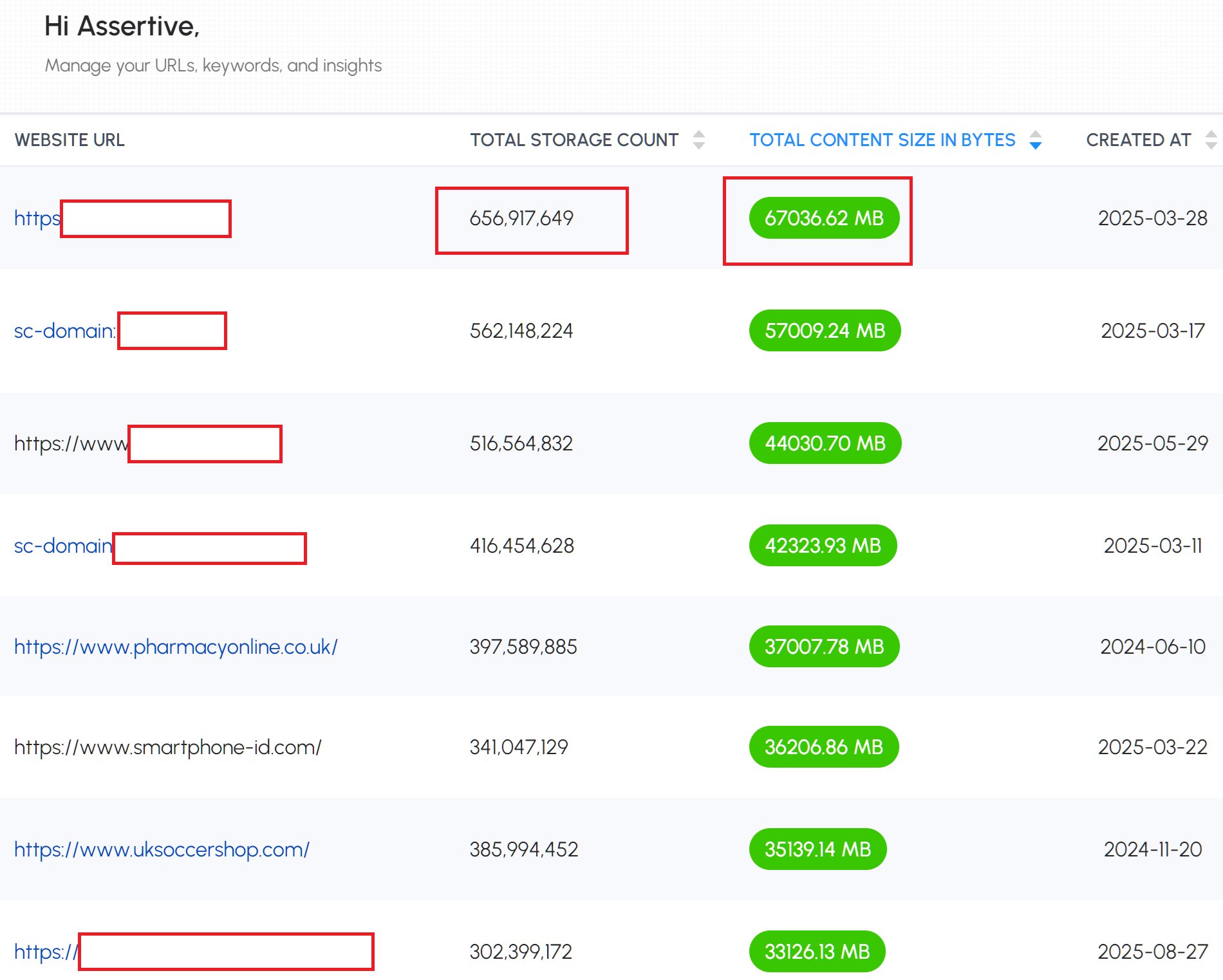
Google stores massive amounts of data for every website in Search Console. A typical site generates 5GB of text data with 16 different data dimensions tracked daily. For sites with thousands of pages and millions of queries, this creates millions of rows of data that Google must store and process.

Multiply this by billions of websites globally, and you understand why Google limits data access to 1,000 rows and keeps historical data for only 16 months.

The storage and processing costs would be astronomical otherwise.

What valuable data are you losing every day?

Why You're Losing Critical GSC Data (And How to Keep It Forever)

Every day that passes, you're losing Search Console data that could inform your SEO strategy:

  • Impression data for long-tail queries you didn't know existed
  • Click-through rates for specific pages over time
  • Position tracking for keywords you're not actively monitoring
  • Device and country performance breakdowns
  • Search appearance data for rich results and featured snippets

This data is worth thousands annually to SEO agencies and consultants who use expensive AI visibility tools — yet most site owners let it disappear.

How can you backup GSC data for free?

Option 1: BigQuery Integration (Free)

  1. Open Google Search Console
  2. Go to Settings → Data Export → BigQuery
  3. Link your Google Cloud project (free tier available)
  4. Enable automatic daily exports

Your data will flow automatically into BigQuery where you can query it indefinitely using SQL.

Option 2: Paid Backup Tools ($10-50/month)

Tools like SEO Stack and SEO Gets automatically backup your GSC data and provide familiar interfaces:

  • Keep data indefinitely
  • Interactive dashboards similar to GSC
  • Export capabilities for analysis
  • Historical trend tracking

How does backed-up data improve your SEO strategy?

With complete historical data, you can:

  • Identify seasonal trends in search demand
  • Track long-term keyword performance beyond 16 months
  • Spot content opportunities from impression data without clicks
  • Monitor competitor keyword gaps by analyzing query variations
  • Build predictive models for traffic forecasting

Start backing up your GSC data today. Every day you wait is another day of valuable SEO insights lost forever.

Want the full playbook? Read our guide on Google Search Console: Setup to Your First SEO Win (20-Minute Guide).

Key Takeaway

Google Search Console only stores 16 months of data and limits exports to 1,000 rows due to massive storage costs. You're losing valuable impression data, long-tail keyword insights, and historical performance metrics daily. Use BigQuery integration (free) or paid tools like SEO Stack to backup GSC data indefinitely and unlock deeper SEO insights.

Source: @foley_seo on Twitter/X

Full tip page
Intermediate Medium Effort

What is the new Schema.org usage statistics dataset?

Schema.org just released a monthly dataset showing which structured data types and properties are actually used across millions of websites. This data comes from Google's crawling and is available in CSV and JSON formats on the official Schema.org GitHub repository.

The statistics are aggregated by domain and presented in popularity ranges rather than exact numbers. This protects privacy while still showing clear adoption trends across the web.

Why should you care about Schema.org usage statistics?

This dataset solves a major problem: knowing which structured data to implement first.

According to the Web Almanac, roughly 37% of pages use JSON-LD structured data — the format Google recommends — so it pays to focus on the most impactful schema types. Before this release, you had to guess which schema types would give you the best return on investment.

Now you can see real adoption data. If a schema type is used by millions of domains, search engines likely support it well. If it's barely adopted, you might want to focus elsewhere.

How can you access and use this structured data usage information?

Visit the Schema.org GitHub repository to download the monthly datasets. The files contain usage statistics for all schema types and properties, broken down by popularity ranges.

You can also see usage statistics directly on individual schema term pages at Schema.org. Each term now displays its adoption level, making it easy to evaluate options while researching.

Which Schema.org types should you prioritize based on usage data?

Focus on widely adopted schema types first. Look for types used across hundreds of thousands or millions of domains. These typically include:

  • Organization and LocalBusiness for company information
  • Product for ecommerce sites
  • Article for blog posts and news content
  • FAQ for question-and-answer sections
  • BreadcrumbList for navigation

Avoid experimental or rarely-used schema types unless you have a specific business need. Your time is better spent implementing proven structured data that search engines actively use.

How often should you check these structured data statistics?

The dataset updates monthly, but you don't need to check it that frequently. Review the statistics quarterly when planning your structured data roadmap, or before implementing new schema types.

Use the data to validate your structured data strategy. If you're considering a schema type that shows very low adoption, research why before investing development time.

What does this mean for the future of structured data?

This transparency from Schema.org and Google signals a more data-driven approach to structured data development. Expect schema types with high usage to receive better support and new features in search results.

The initiative also opens the door for other search engines to contribute their usage statistics, potentially creating a more complete picture of structured data adoption across the web.

Want the full playbook? Read our guide on Google Search Console: Setup to Your First SEO Win (20-Minute Guide).

Key Takeaway

Schema.org released a monthly dataset showing structured data usage across millions of websites. Use these statistics to prioritize which schema types to implement first, focusing on widely adopted types like Organization, Product, and Article rather than experimental schemas with low adoption rates.

Source: blog.schema.org on Web

Full tip page
Intermediate Medium Effort

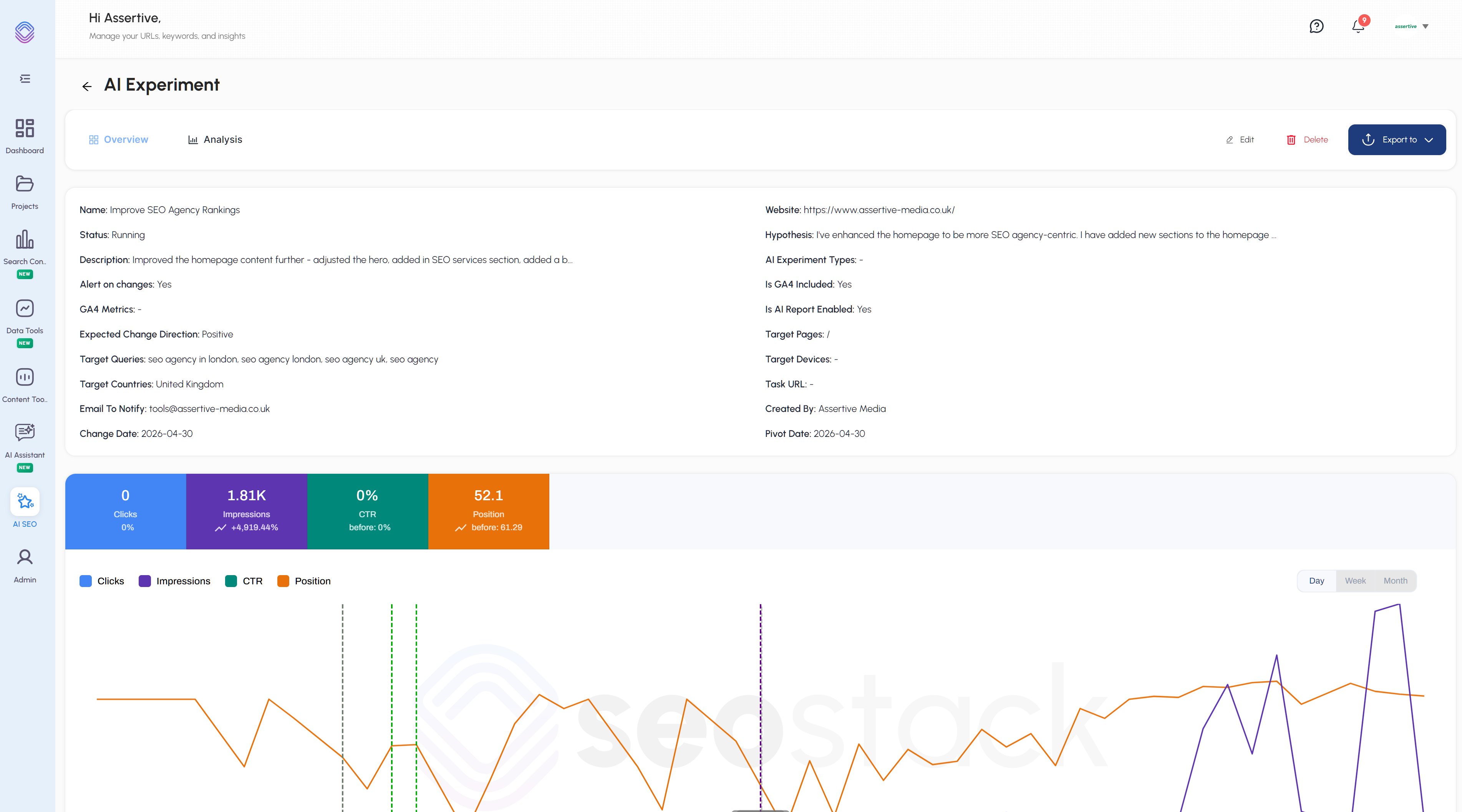
Why SEO Experiments Beat Guesswork

Most SEO changes happen in a vacuum.

You update title tags, revamp content, fix technical issues — then wait and hope. But without proper tracking, you never know which changes actually moved the needle.

SEO experiments solve this by creating a feedback loop between your changes and measurable results.

Setting Up Your SEO Experiment System

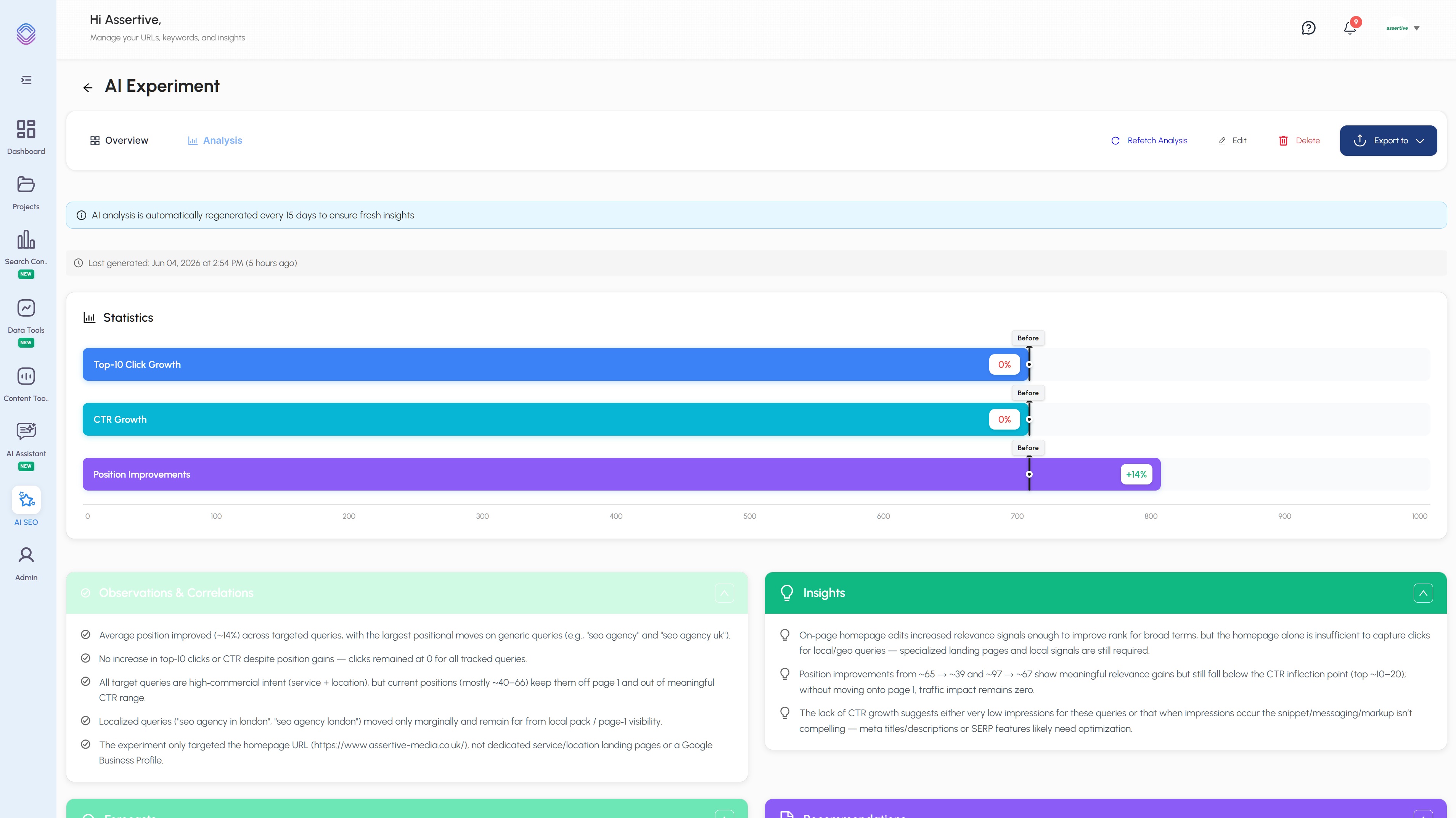
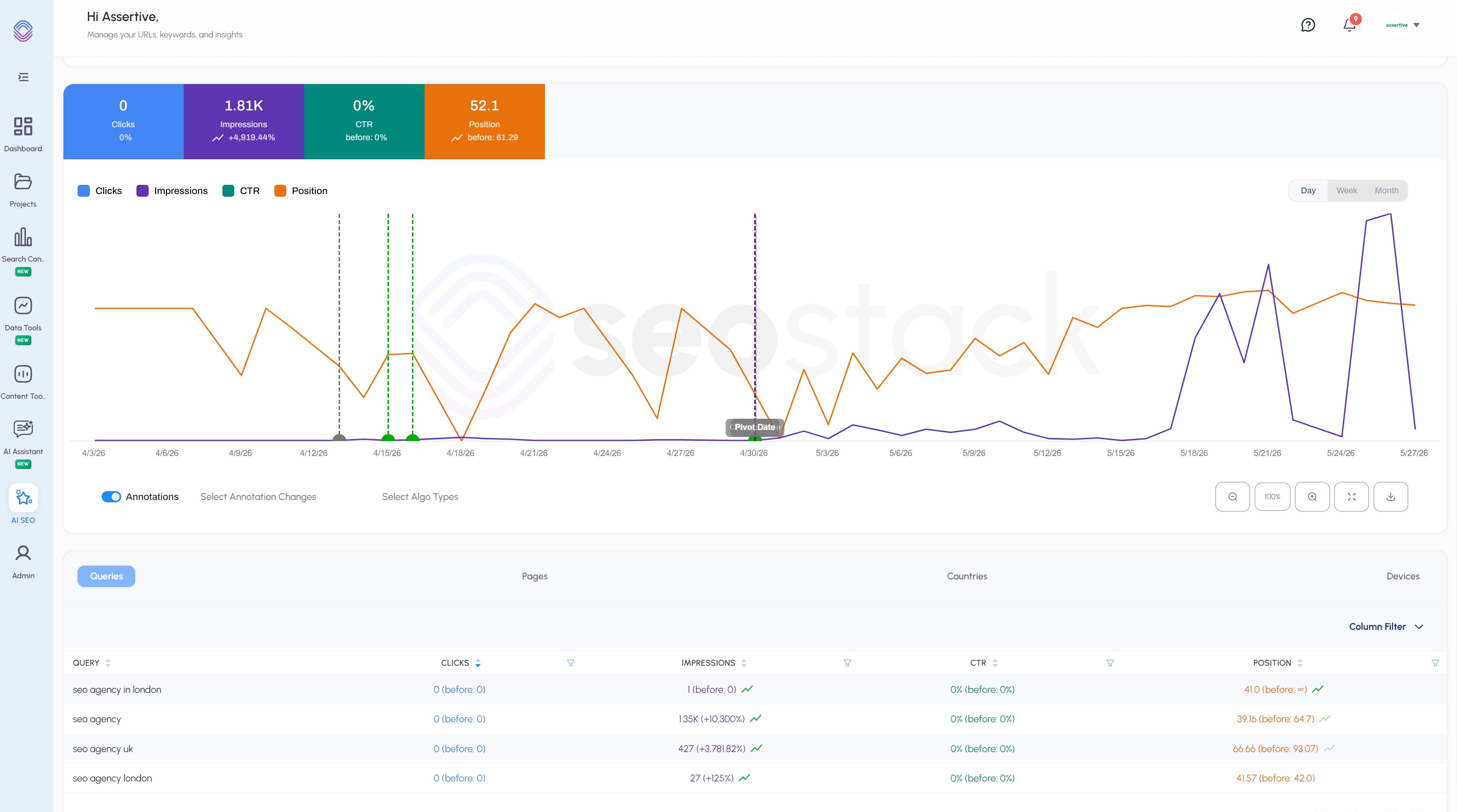
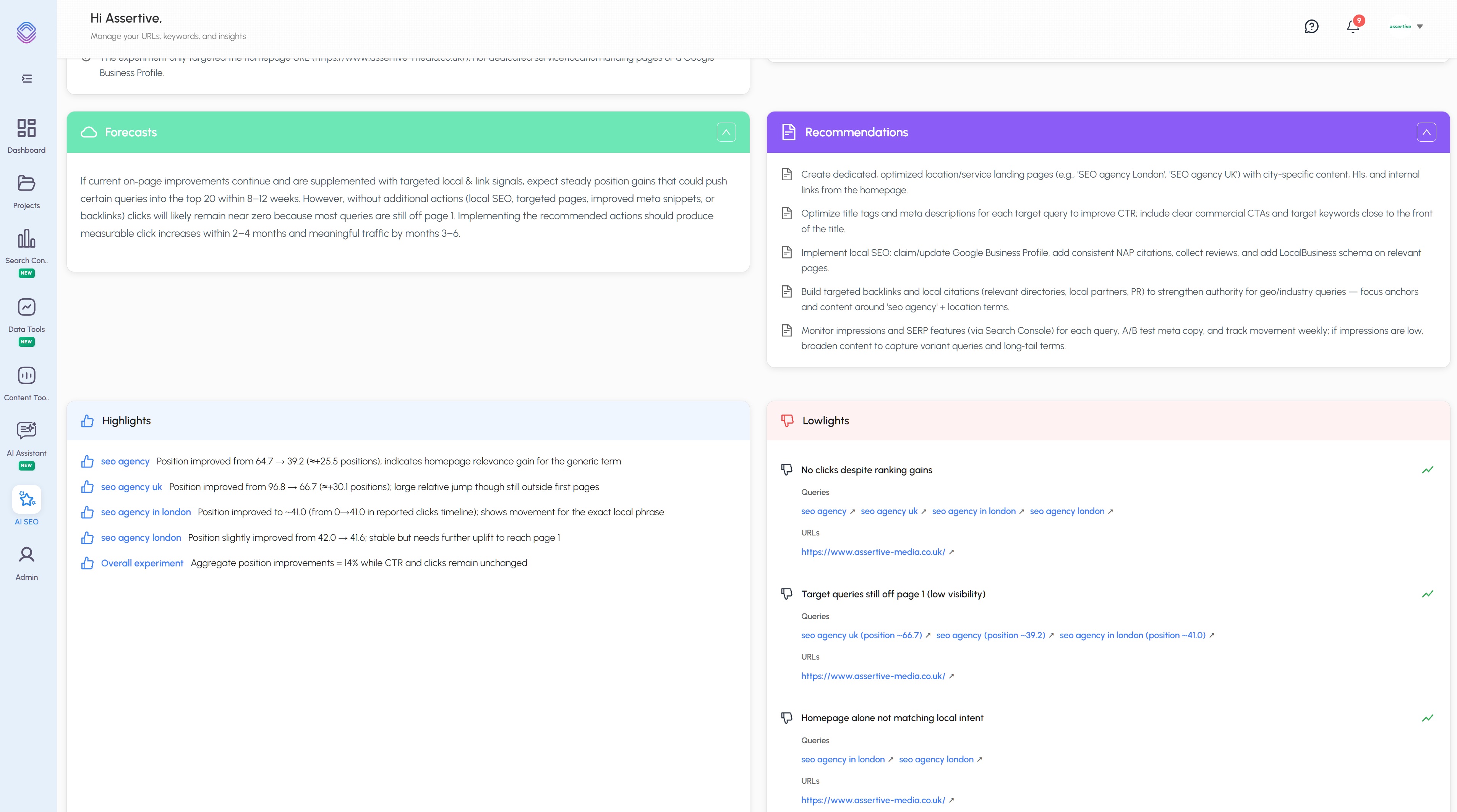
Track SEO Changes with AI-Powered Experiment Monitoring

Step 1: Document Every Change

Before making any SEO modification, log it with:

  • Exact pages modified
  • Type of change (content, technical, UX)
  • Date implemented
  • Hypothesis for expected impact

Use tools like SEO Stack for annotations, or create a simple spreadsheet.

Step 2: Define Your Tracking Metrics

Monitor these key data points from Google Search Console:

  • Query counts — total search terms triggering your pages
  • Query relevance — how well your content matches search intent
  • Primary keyword rankings — your main target terms
  • Long-tail rankings — secondary and supporting keywords
  • Average position changes — overall ranking movement

Supplement with Google Analytics 4 behavioral data like bounce rate, time on page, and conversion metrics.

Step 3: Use AI for Pattern Recognition

AI tools excel at spotting patterns across multiple data sources. Set up automated analysis that:

  • Pulls daily GSC and GA4 data
  • Correlates ranking changes with your logged modifications
  • Identifies which types of changes produce the best results
  • Generates insights about user behavior shifts

Making Experiments Actionable

Track SEO Changes with AI-Powered Experiment Monitoring

Run parallel tests: Don't change everything at once. Test one variable per page group so you can isolate what works.

Set notification triggers: Get Slack or email alerts when significant ranking changes occur. This lets you react quickly to both positive and negative results.

Scale successful changes: When an experiment shows clear positive results, apply the same approach to similar pages across your site.

The Real Power: Compound Learning

Track SEO Changes with AI-Powered Experiment Monitoring

Each experiment teaches you something specific about your site and audience. Over time, you build a playbook of proven tactics that work for your particular niche and technical setup.

This beats following generic SEO advice because you're optimizing based on your actual data, not someone else's case study.

Quick Win Implementation

Track SEO Changes with AI-Powered Experiment Monitoring

Start simple: Pick 10 similar pages, make one type of change to 5 of them, and track ranking differences over 30 days. Use free tools like Google Search Console and Google Analytics 4 for basic tracking.

Once you see the value, invest in more sophisticated tracking and AI analysis tools.

Want the full playbook? Read our guide on Google Search Console: Setup to Your First SEO Win (20-Minute Guide).

Key Takeaway

Log every SEO change with a hypothesis and test one variable at a time, so you learn which tactics actually move rankings instead of guessing.

Source: @foley_seo on Twitter/X

Full tip page
Intermediate Quick Win

Understanding Robots.txt Specificity

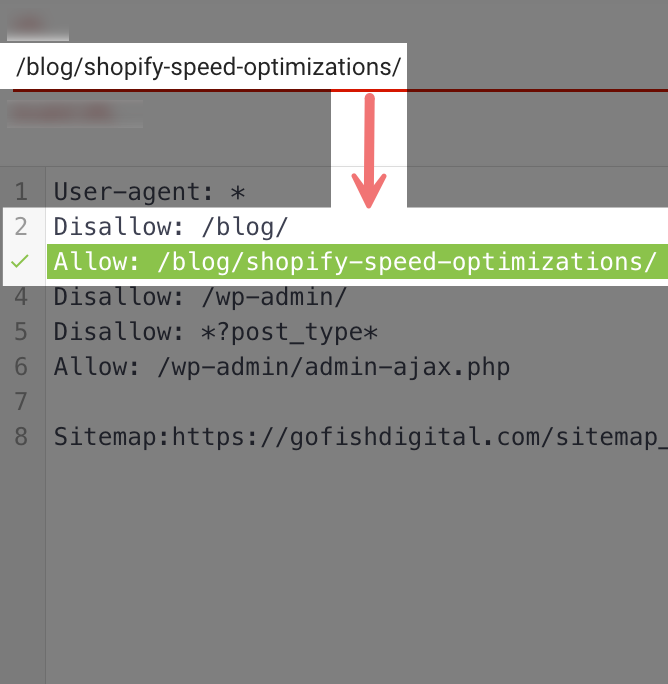
Robots.txt files don't just follow commands in order — they follow a hierarchy based on specificity.

When you have conflicting directives, search engines will always prioritize the most specific rule over general ones.

How the Specificity Rule Works

How Robots.txt Specificity Rules Work in Technical SEO

Think of it like a filing system. If you have a rule that says "block everything in the filing cabinet" but another rule that says "allow access to this specific drawer," the specific drawer rule wins.

Here's the technical breakdown:

  • General rule: Disallow: /blog/ (blocks entire blog directory)
  • Specific rule: Allow: /blog/shopify-speed-optimizations/ (allows one specific page)
  • Result: The specific page gets crawled despite the general block

Practical Examples for Your Site

Example 1: Blocking Admin Areas with Exceptions

Disallow: /admin/
Allow: /admin/public-stats/

This blocks all admin pages except your public statistics page.

Example 2: Seasonal Content Management

Disallow: /holiday-2023/
Allow: /holiday-2023/evergreen-gift-guide/

Blocks old holiday content but keeps your evergreen gift guide accessible.

Example 3: User-Generated Content Control

Disallow: /user-profiles/
Allow: /user-profiles/featured/

Prevents indexing of all user profiles except featured ones.

Common Mistakes to Avoid

Don't assume robots.txt follows top-to-bottom order like CSS. The most specific path always wins, regardless of where it appears in your file.

Test your robots.txt logic using Google Search Console's robots.txt tester before going live. This prevents accidental blocking of important pages.

Quick Implementation Tip

When setting up conflicting rules, write the general rule first, then add specific exceptions below. While order doesn't matter for functionality, this structure makes your robots.txt easier to read and maintain.

Want the full playbook? Read our guide on Google Search Console: Setup to Your First SEO Win (20-Minute Guide).

Key Takeaway

Robots.txt follows path specificity, not top-to-bottom order, so a precise Allow rule always overrides a broad Disallow regardless of position.

Source: @chris_nectiv on Twitter/X

Full tip page
Intermediate Medium Effort

Why does JavaScript dependency matter for LLM visibility?

Large Language Models (LLMs) like ChatGPT, Claude, and Google's Gemini don't always render JavaScript when analyzing websites.

If your key content relies on JavaScript to display, AI search engines might miss it entirely.

This creates a blind spot that could hurt your visibility in AI-powered search results.

How do you test if LLMs can actually see your website content?

Test if LLMs can see your website content (JavaScript dependency check)

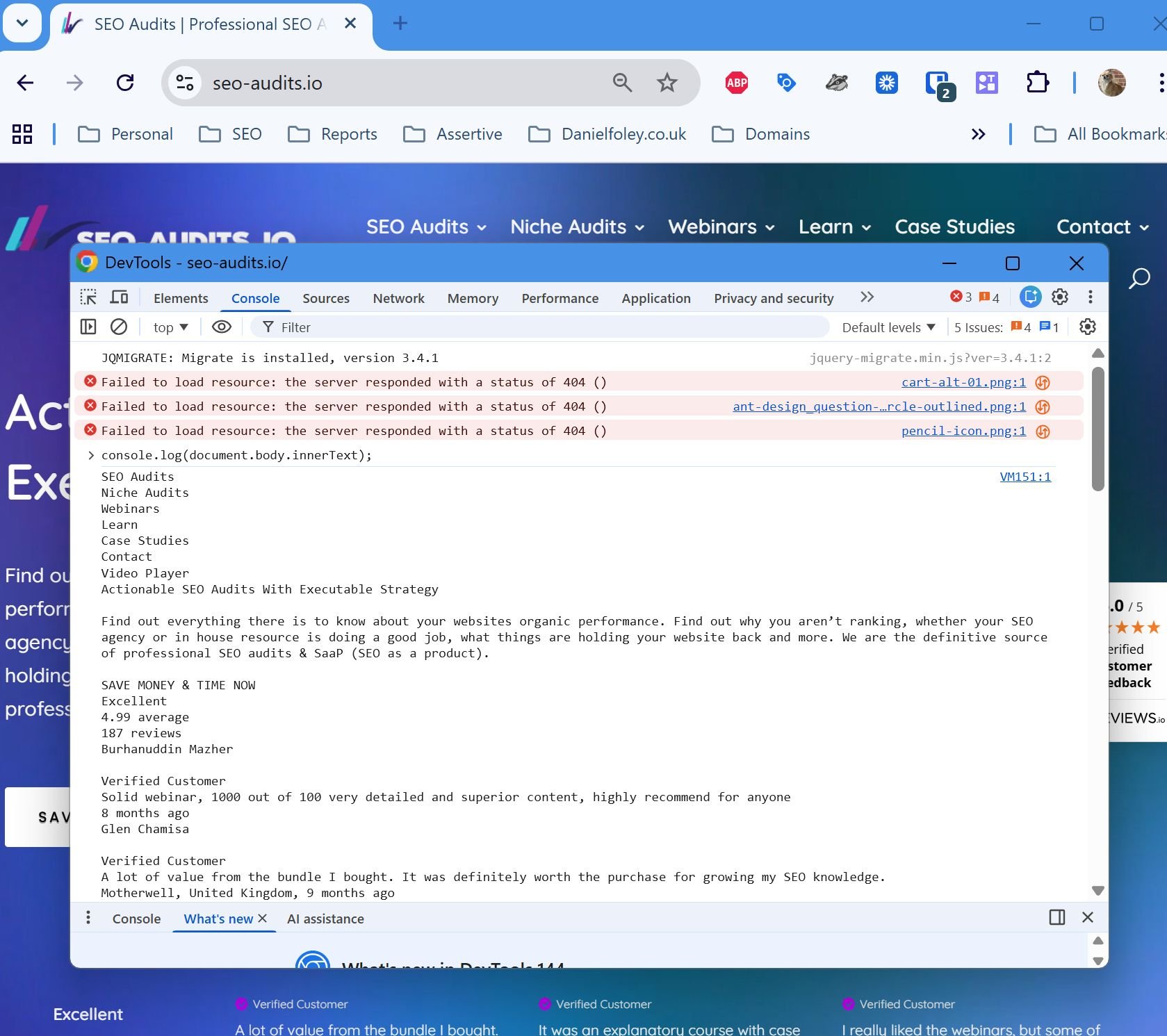
Here's a simple way to see exactly what text an LLM can access from your pages:

  1. Open the page you want to test in Chrome
  2. Press F12 to open Developer Tools
  3. Click the Elements tab, then press Ctrl + Shift + P
  4. Type "java" in the search box and select "Disable JavaScript"
  5. Refresh the page
  6. Switch to the Console tab and paste this code:
    console.log(document.body.innerText);
  7. Press Enter to see all visible text

How does content differ between JavaScript and non-JavaScript versions?

To find missing content:

  1. Save the output from step 7 to a text file (let's call it "no-js.txt")
  2. Re-enable JavaScript by refreshing and repeating steps 3-4, but select "Enable JavaScript"
  3. Run the same console command and save this output ("with-js.txt")
  4. Upload both files to ChatGPT, Claude, or Gemini
  5. Ask the AI: "Compare these two files and highlight what content is missing from the first one"

What will you discover about your site's LLM accessibility?

This test reveals:

  • Navigation menus that don't load without JavaScript
  • Product descriptions rendered dynamically
  • Review sections that appear via AJAX
  • Key calls-to-action hidden behind JavaScript
  • Blog content loaded asynchronously

What are the quick fixes when LLMs can't see your content?

If you find critical content missing:

  • Add server-side rendering for essential text
  • Use progressive enhancement instead of JavaScript-dependent content
  • Include key information in HTML meta tags
  • Consider adding text alternatives for JavaScript-heavy sections

This 10-minute test could reveal why your content isn't showing up in AI search results.

Want the full playbook? Read our guide on JavaScript Mobile SEO: Fix Rendering Before It Kills Rankings.

Key Takeaway

Testing your website without JavaScript reveals what AI search engines actually see when crawling your content. Many sites load critical elements like product descriptions, reviews, or navigation through JavaScript, making them invisible to LLMs that don't render scripts. Use Chrome DevTools to disable JavaScript, then extract all visible text with console.log(document.body.innerText) to identify gaps. Compare this output with your JavaScript-enabled version to spot missing content that could hurt your AI search visibility.

Source: @foley_seo on Twitter/X

Full tip page
Beginner Quick Win

Why are SEO teams ditching premium tools for free alternatives?

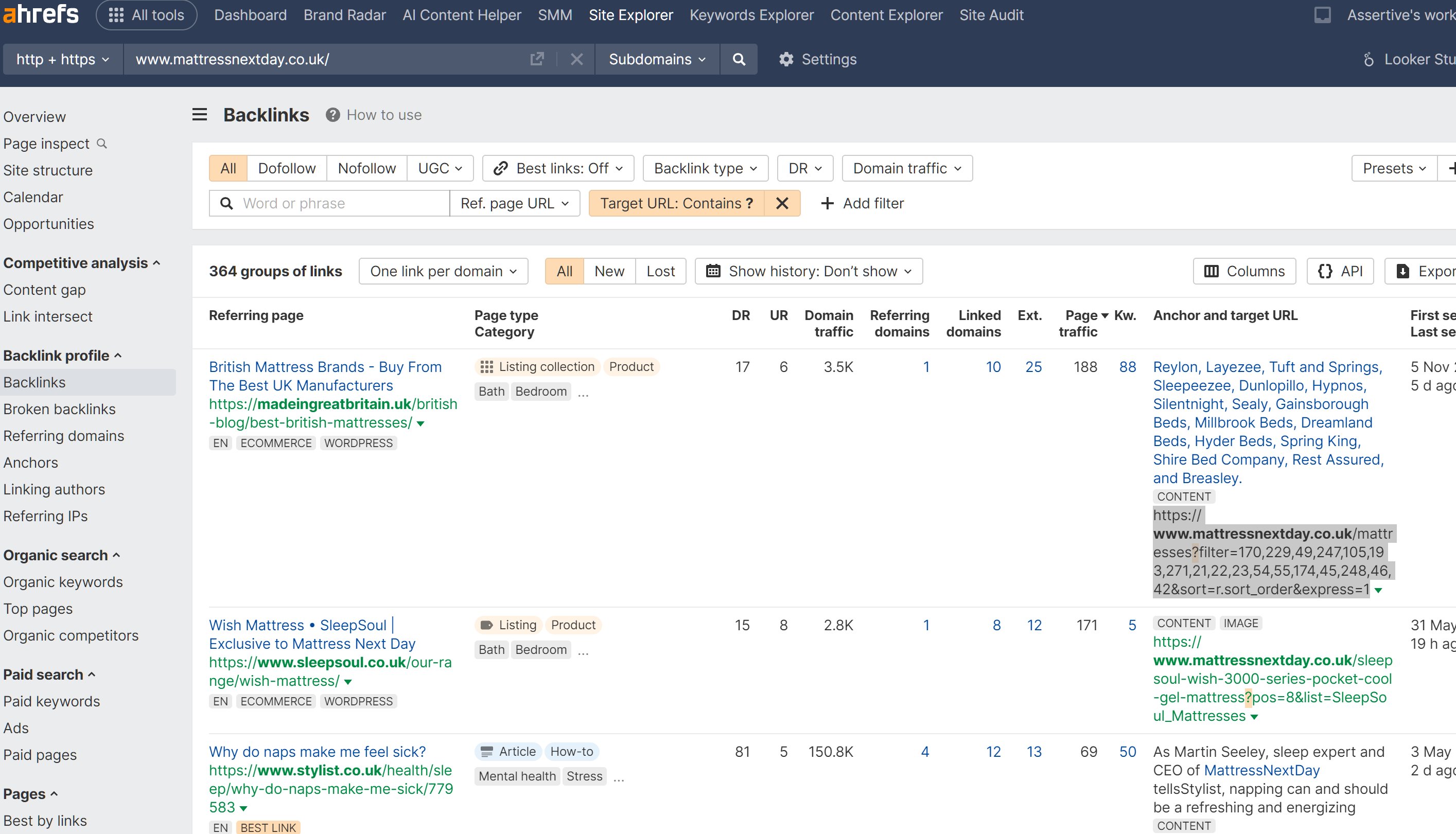
Ahrefs costs $129+ per month. For small businesses and solo founders, that's a significant expense. But here's what most people don't realize: you can get 80% of Ahrefs' functionality using free tools and smart workflows.

Which free SEO tools can actually replace paid subscriptions?

For Keyword Research:

For Backlink Analysis:

  • Google Search Console shows your actual backlinks
  • Moz Link Explorer (10 free queries monthly)
  • SEMrush free plan (limited but useful)
  • Manual competitor research using site: searches

For Technical SEO:

What's the most effective workflow using free SEO tools?

  1. Start with Search Console - Your most accurate data lives here
  2. Use competitor research sparingly - Focus on one main competitor per month
  3. Batch your keyword research - Collect 50+ keywords in one session
  4. Track manually in spreadsheets - Simple but effective for small sites

When do premium SEO tools actually make sense to buy?

If you manage 10+ websites or need daily competitor monitoring, premium tools pay for themselves. But for most small businesses, free tools plus solid SEO fundamentals win every time.

How do you build your free SEO toolkit action plan?

  • Audit your current tool usage - are you using premium features?
  • Set up Google Search Console properly (many skip this)
  • Create a keyword research spreadsheet template
  • Schedule monthly SEO check-ins instead of daily monitoring

The goal isn't to avoid all tools - it's to spend money on tools that directly grow your business.

Want the full playbook? Read our guide on Google Search Console: Setup to Your First SEO Win (20-Minute Guide).

Key Takeaway

Most small businesses waste money on expensive SEO tools like Ahrefs when free alternatives deliver 80% of the same insights. Google Search Console provides your most accurate backlink and performance data, while Google Keyword Planner handles keyword research effectively. Combine these with Screaming Frog for technical audits and manual competitor analysis using Google searches. This free toolkit approach lets you reinvest that $129 monthly subscription into content creation or other growth activities that directly impact your rankings.

Source: @seonatia on Twitter/X

Full tip page
Beginner Quick Win

What should you know about the multi-platform SEO reality check?

Before you dive headfirst into creating content across every social platform and owned channel, pause.

According to HubSpot, 64% of marketers actively invest time in search engine optimization, making it crucial to ensure your chosen platforms actually contribute to search visibility. That shiny new "search everywhere" strategy could backfire if you skip one crucial step: testing whether Google actually indexes your chosen platforms.

How do you perform the simple indexing test?

Test Channel Indexing Before Creating Multi-Platform SEO Content

Here's how to validate any platform before investing serious content creation time:

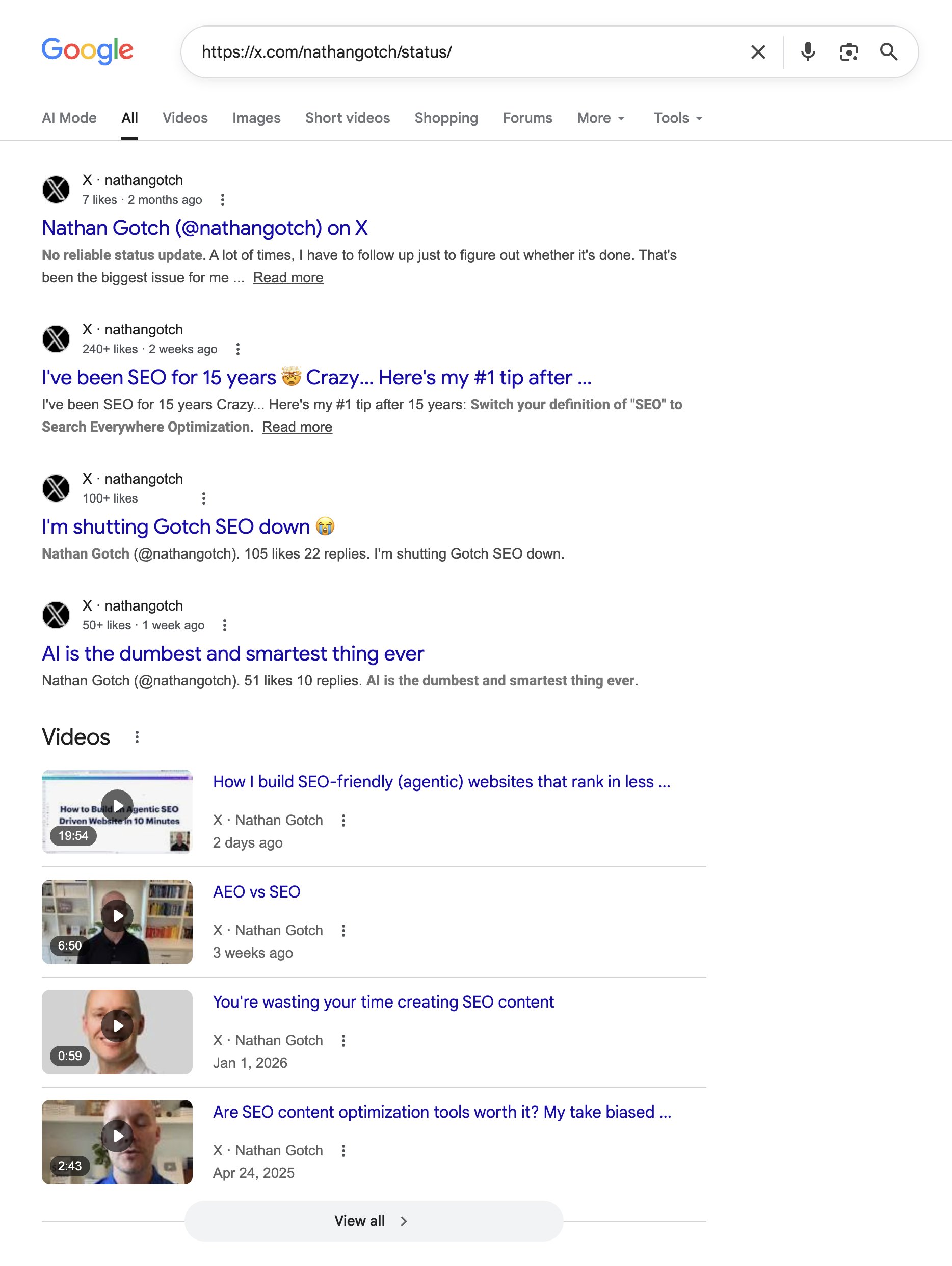
  1. Grab the raw URL of the profile or channel you plan to use
  2. Search that exact URL in Google using the site: operator
  3. Check the results — does Google show your profile and recent posts?

What does good indexing actually look like?

When Google indexes a platform well, you'll see:

  • Your profile appears in search results
  • Recent posts show up individually
  • Content appears within 24-48 hours of posting
  • Platform-specific features (like LinkedIn articles) get indexed separately

What are the red flags you should avoid?

Some platforms have terrible Google visibility:

  • No search results for your profile URL
  • Only your main profile shows up, never individual posts
  • Content takes weeks to appear in search
  • Platform blocks Google's crawlers entirely

What is the green light strategy for content creation?

Once you confirm good indexing, go all-in on that channel. Create content around your core expertise consistently. Google treats well-indexed platforms as legitimate content sources, which means your posts can rank for relevant searches.

Why does this indexing approach matter right now?

Google increasingly pulls results from social platforms, forums, and non-traditional websites. But this only works if Google can actually see and index that content. Testing first saves you from wasting months creating content that never gets discovered.

Don't assume every platform works the same way. Test each one individually before committing your content strategy.

Want the full playbook? Read our guide on Google Search Console: Setup to Your First SEO Win (20-Minute Guide).

Key Takeaway

Before creating content across multiple platforms for SEO, test whether Google actually indexes each channel using the site: operator with your profile URL. Well-indexed platforms show your profile and recent posts in search results within 24-48 hours, while poorly indexed ones may only display your main profile or take weeks to appear. This simple validation step prevents wasting months creating content that Google never discovers, since the search engine increasingly pulls results from social platforms and non-traditional sites, but only when it can properly crawl and index that content.

Source: @nathangotch on Twitter/X

Full tip page
Beginner Quick Win

What happened during the 30-day exact-match domain experiment?

I recently tested how quickly different search engines respond to new exact-match domains. The results were eye-opening.

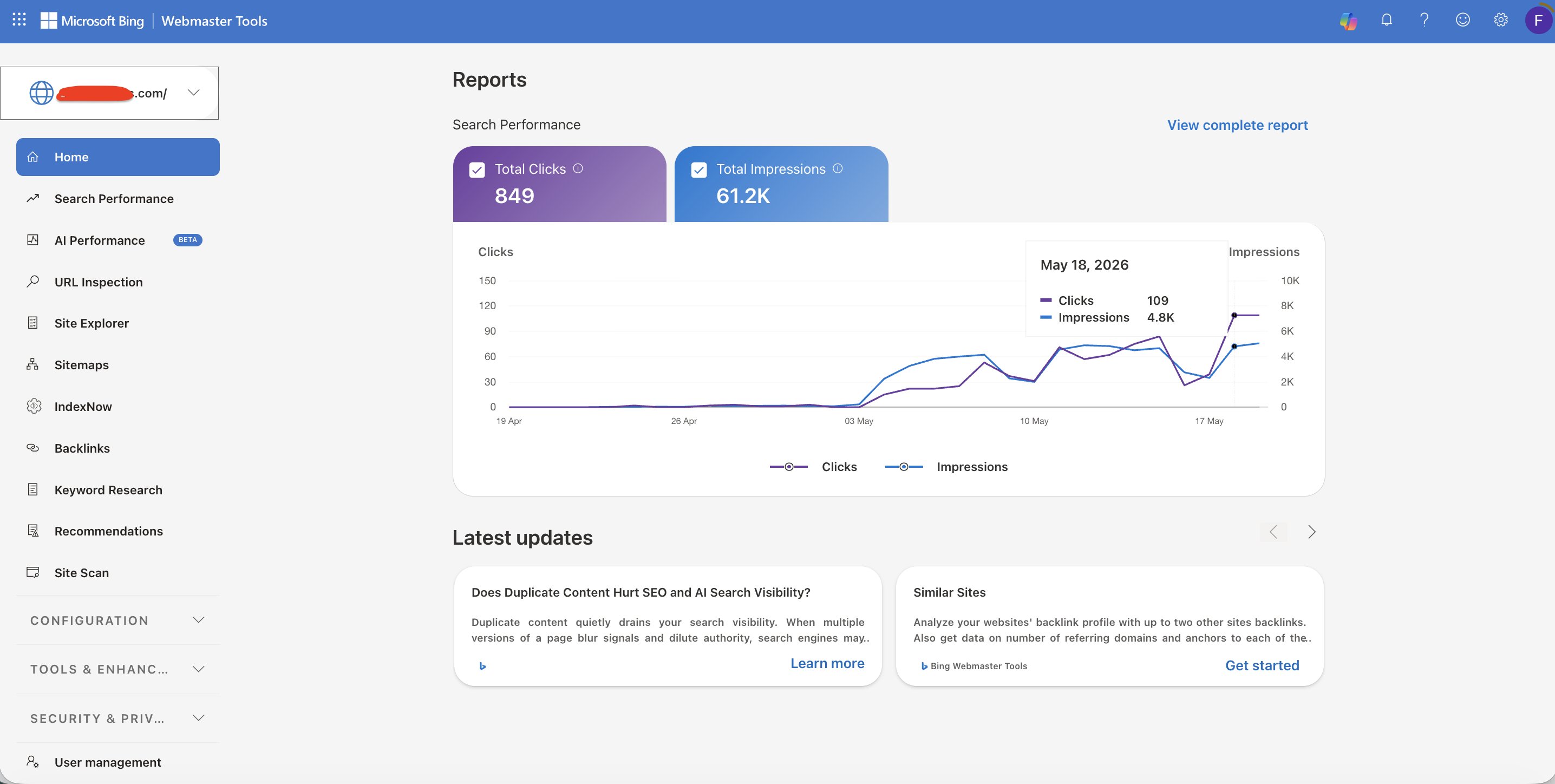
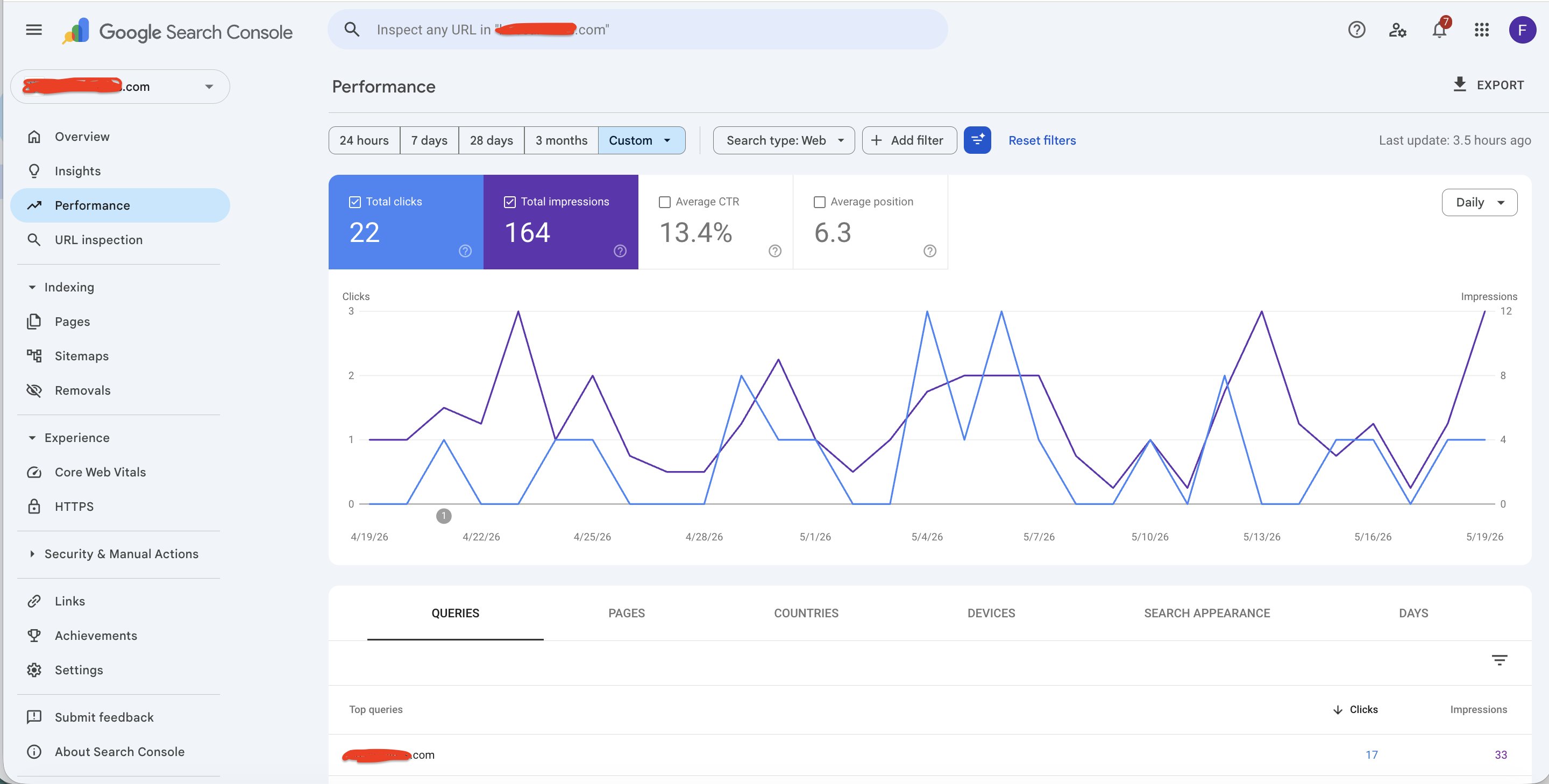
I launched a website on an exact-match keyword .com domain with zero promotion:

After 30 days, here's what happened:

Bing results:

  • 5,000 impressions per day
  • 100+ clicks on peak days
  • Fast recognition and ranking

Google results:

  • 5 impressions per day
  • Less than 1 click per day average
  • Minimal movement in rankings

Why does Bing respond faster to exact-match domains than Google?

Why Bing indexes exact-match domains faster than Google

This isn't a one-off result. I've seen this pattern across multiple new sites:

  • Bing trusts domain-keyword alignment more quickly when the domain clearly matches search intent
  • Google takes a "wait and see" approach that often stretches for months
  • Bing's algorithm appears less cautious about ranking new exact-match domains

For some of my established sites, Bing already sends thousands of daily clicks while Google is still "warming up" to the same content.

How can you leverage this Bing advantage for new sites?

Why Bing indexes exact-match domains faster than Google

If you're launching a new website, don't ignore Bing:

  1. Submit to Bing Webmaster Tools immediately after going live
  2. Optimize for Bing's preferences - they respond well to exact keyword matches in domains and content
  3. Use early Bing traffic as validation before Google picks up momentum
  4. Build content authority early using Bing's faster recognition

What strategic advantage does this give you over competitors?

Bing represents about 6% of search market share, but for new sites, it can provide:

  • Faster feedback loops on content performance
  • Early traffic and validation before Google rankings improve
  • Revenue opportunities while waiting for Google to trust your domain

Sometimes the fastest opportunity isn't where everyone else is looking. While competitors focus entirely on Google, Bing can give you a head start.

Want the full playbook? Read our guide on Google Search Console: Setup to Your First SEO Win (20-Minute Guide).

Key Takeaway

Bing indexes and ranks exact-match domains significantly faster than Google, often delivering thousands of daily impressions within 30 days compared to Google's minimal response during the same period. This happens because Bing's algorithm appears more willing to trust domain-keyword alignment immediately, while Google takes a cautious "wait and see" approach that can last months. New website owners should submit to Bing Webmaster Tools immediately after launch and optimize for Bing's preferences to capture early traffic and validation while building authority for eventual Google recognition.

Source: @KenLin1985 on Twitter/X

Full tip page
Intermediate Long-term

Why do website migrations kill SEO rankings?

Website migrations and redesigns are common causes of massive SEO traffic drops. Whether you're switching domains, launching a new site design, or moving to a different platform, the process often breaks years of SEO work in a matter of days.

The good news? Most migration disasters are completely preventable with proper planning.

What should be on your pre-migration SEO checklist?

Before touching a single line of code or flipping any switches, complete these essential steps:

1. Map Your Current URLs

  • Use a crawler like Screaming Frog or Sitebulb to export every existing URL on your site
  • Focus on pages that currently rank in search results or receive organic traffic
  • Export this data to a spreadsheet for reference during the migration

2. Plan Your Redirect Strategy

  • Create 301 redirects from old URLs to their new equivalents
  • Don't redirect everything to your homepage — match old pages to relevant new pages
  • If a page doesn't have a direct replacement, redirect to the most relevant category or parent page
  • Test redirects before going live to avoid redirect chains or loops

3. Preserve High-Value Content

  • Identify pages that drive the most organic traffic in Google Analytics
  • Keep the core content, title tags, and heading structure intact on these pages
  • Don't merge multiple ranking pages into one unless absolutely necessary

4. Handle Domain Changes Properly

If you're changing domains:

  • Submit a change of address request in Google Search Console
  • Keep the old domain active and redirecting for at least 12 months
  • Update internal links to point to the new domain
  • Notify major linking partners about the domain change

How do you monitor SEO after a website migration?

After the migration:

  • Monitor Search Console for crawl errors and fix them immediately
  • Check that your XML sitemap reflects the new URL structure
  • Watch organic traffic closely for the first 30 days
  • Be ready to fix redirect issues quickly if rankings drop

Most SEO drops after website redesigns happen because teams skip these basic steps. A few hours of preparation can save months of recovery work.

Want the full playbook? Read our guide on Google Search Console: Setup to Your First SEO Win (20-Minute Guide).

Key Takeaway

Website migrations destroy SEO rankings when redirects fail or disappear entirely. Before launching your new site, map every existing URL with a crawler like Screaming Frog and create specific 301 redirects to equivalent new pages. Never redirect everything to your homepage—match old pages to relevant new locations or category pages. Submit a change of address in Google Search Console for domain changes and monitor crawl errors daily for 30 days post-launch. Proper redirect planning prevents months of traffic recovery work.

Source: @AlexLathery on Twitter/X

Full tip page
Beginner Quick Win

What's the fastest way to find technical SEO issues on your site?

Most websites have technical problems killing their search rankings.

According to a study by BrightEdge, 53% of organic traffic comes from organic search, yet technical SEO issues often block pages from ranking entirely. Missing title tags, broken internal links, duplicate content — the list goes on. You could spend weeks manually checking pages, or you could use Screaming Frog's free crawler to spot everything in 30 minutes.

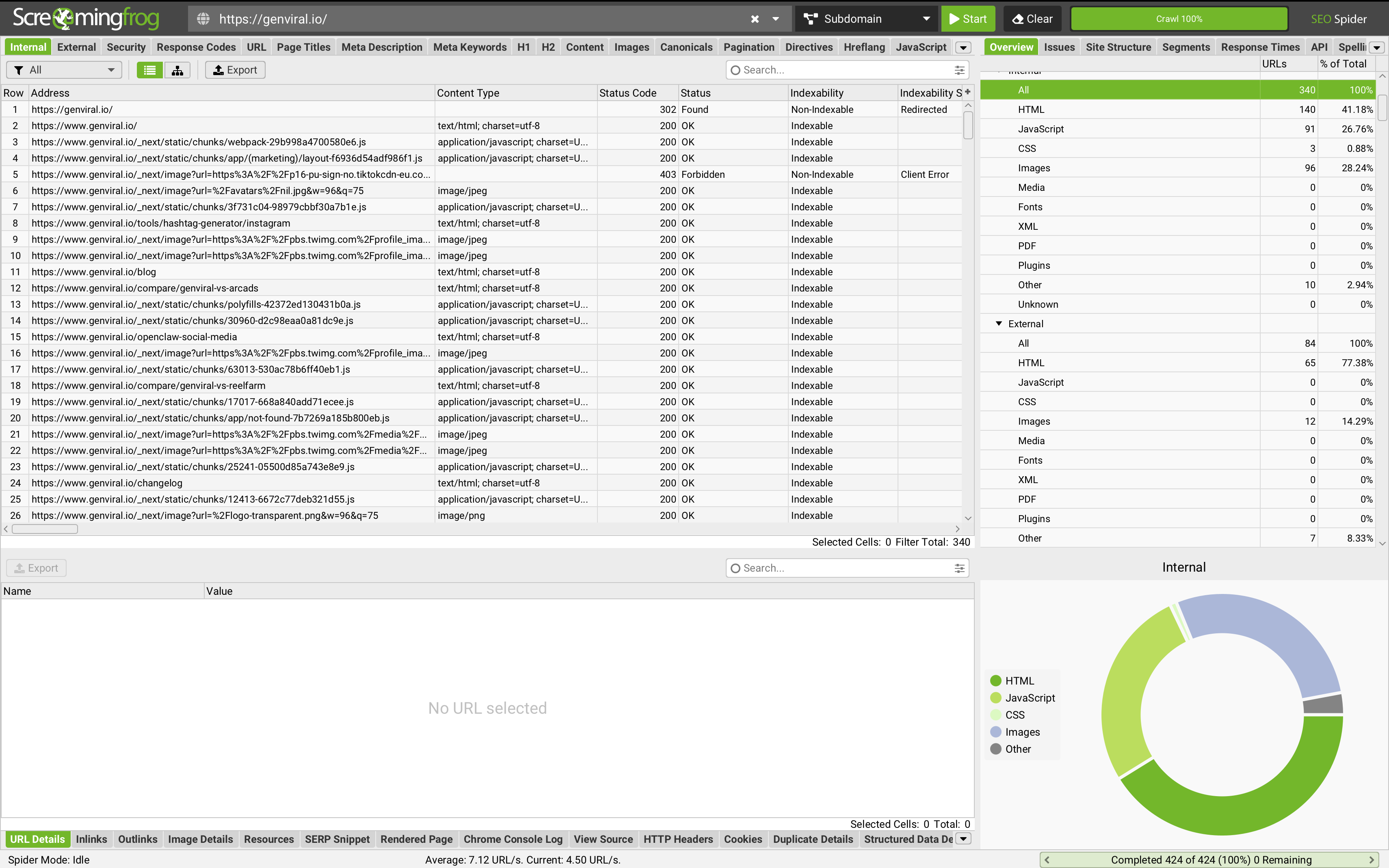
Screaming Frog interface showing crawl results

How do you run your first technical SEO audit with Screaming Frog?

  1. Download Screaming Frog SEO Spider (free version crawls up to 500 URLs)
  2. Enter your website URL and hit "Start"
  3. Wait for the crawl to finish — usually takes 5-15 minutes depending on site size
  4. Click through each tab to see different issue types

The tool surfaces problems you'd never find manually: pages returning 404 errors, images missing alt text, titles over 60 characters, pages with no meta descriptions.

Which high-impact technical SEO fixes should you prioritize first?

Response codes tab: Look for 4xx and 5xx errors. These pages aren't indexable.

Page titles tab: Find pages with duplicate, missing, or overly long titles. Each page needs a unique title under 60 characters.

Meta descriptions tab: Spot pages missing descriptions or descriptions over 160 characters.

Images tab: Check for images without alt text — major accessibility and SEO issue.

How can AI help you speed up technical SEO fixes?

Here's the time-saving trick: Export any issue list as CSV, then paste it into Claude or ChatGPT with this prompt:

"Here are technical SEO issues from my website crawl. For each URL, suggest the specific fix needed and priority level."

The AI will give you a prioritized action plan instead of a overwhelming list of problems.

What does the free version of Screaming Frog actually cover?

Screening Frog's free tier crawls 500 URLs — perfect for small business sites. You get response codes, page titles, meta data, heading analysis, images, and internal/external links.

For most sites under 500 pages, this covers everything you need for a complete technical audit. No monthly fees, no trial periods.

What quick technical SEO wins will you find immediately?

  • Broken internal links pointing to 404 pages
  • Duplicate title tags across multiple pages
  • Missing meta descriptions on important pages
  • Images without alt text hurting accessibility
  • Pages with no H1 tags confusing search engines

Run this audit monthly. Technical SEO problems accumulate over time as you add content, and catching them early prevents ranking drops.

The tool takes 30 minutes to learn and will save you hours of manual checking. Most technical SEO issues are simple fixes once you know they exist.

Want the full playbook? Read our guide on Google Search Console: Setup to Your First SEO Win (20-Minute Guide).

Key Takeaway

Screaming Frog's free SEO Spider crawls up to 500 pages in minutes, automatically flagging broken links, duplicate titles, missing meta descriptions, and images without alt text that manually checking would take hours to find. Export the issue list as CSV and paste it into ChatGPT with a prompt asking for prioritized fixes to transform an overwhelming problem list into actionable steps. Run this monthly audit to catch technical issues before they hurt rankings, since most problems are quick fixes once identified.

Source: @onlinedopamine on Twitter/X

Full tip page
Intermediate Long-term

What technical foundation mistakes are most sites making?

Your website might look beautiful, but if the technical foundation is broken, Google can't find, crawl, or rank your pages properly. Here are the 10 most damaging technical SEO mistakes I see companies make.

What JavaScript sitemap problems are hurting your SEO?

If your sitemap is generated with JavaScript, Google can't read it properly. This makes your entire site nearly invisible to search engines.

Fix: Generate XML sitemaps server-side and submit them directly to Google Search Console.

How does page speed actually kill your conversions?

A slow-loading demo page destroys conversions before your sales team gets a chance to follow up.

According to Google, 53% of mobile users abandon sites that take longer than 3 seconds to load. Page speed isn't just an SEO ranking factor — it directly impacts your bottom line.

Fix: Run PageSpeed Insights and tackle the biggest issues first: compress images, enable lazy loading, and remove render-blocking scripts.

Which Core Web Vitals can you absolutely not ignore?

Google measures user experience through Core Web Vitals. Common problems include:

  • Uncompressed images slowing down LCP
  • No lazy loading causing layout shifts
  • Render-blocking JavaScript everywhere
  • Missing CDN setup

Fix: Use WebP images, implement lazy loading, defer non-critical JavaScript, and set up a CDN like Cloudflare.

How do you fix duplicate content chaos on your site?

Many sites have multiple versions of the same page: HTTP vs HTTPS, www vs non-www, or filter parameters creating dozens of duplicate URLs.

Fix: Set up proper canonical tags and choose one preferred version for each page. Use 301 redirects to consolidate authority.

What happens when you're missing schema markup?

Structured data helps Google understand your content and can earn rich snippets in search results. One client saw click-through rates jump 27% after adding FAQ schema.

Fix: Add relevant schema markup using Google's Structured Data Testing Tool. Start with FAQ, review, or product schema depending on your content.

What's the reality of mobile-first indexing for your site?

Google now judges your entire site based on its mobile version. If your mobile experience is poor, your desktop rankings suffer too.

Fix: Test your mobile site thoroughly. Ensure all content, images, and functionality work properly on mobile devices.

How are you wasting your crawl budget?

Google has limited time to crawl your site. If it wastes time on filter pages and session IDs, it never reaches your important pages.

Fix: Use robots.txt to block low-value pages. Set up proper URL parameters in Search Console.

How do you fix broken redirects after a rebrand?

Launching a rebrand without proper redirects destroys years of backlink authority. Those 200 broken backlinks pointing to 404 pages represent lost rankings and traffic.

Fix: Map old URLs to new ones before launch. Set up 301 redirects for every changed URL.

What should be on your basic SEO audit checklist?

Before diving into complex optimizations, ensure these basics are covered:

  • XML sitemap submitted to Search Console
  • No orphan pages without internal links
  • HTTPS enabled sitewide
  • Canonical tags on every page
  • Mobile responsive design
  • Load times under 3 seconds

What SEO checks do you need before launching?

The biggest mistake is treating SEO as an afterthought. When developers ship a new site without H1 tags, with auto-generated meta titles, or broken internal links, you're starting from behind.

Fix: Include SEO requirements in your development process. Review technical SEO elements before any site launch.

Want the full playbook? Read our guide on JavaScript Mobile SEO: Fix Rendering Before It Kills Rankings.

Key Takeaway

JavaScript-generated sitemaps create a major blind spot in your SEO strategy because Google's crawlers can't read them properly, making your pages nearly invisible to search engines. Instead, generate XML sitemaps server-side using your CMS or a static site generator, then submit them directly through Google Search Console. This simple switch ensures Google can discover and index all your important pages, typically resulting in better crawl coverage and faster indexing of new content within weeks.

Source: @fba on Twitter/X

Full tip page

Putting these technical seo tips into action

The 16 tips above represent the most validated technical seo advice in the PocketSEO database — each one sourced from a practitioner who shared their finding publicly with their name attached. But reading tips is not the same as implementing them.

Start with the beginner-level quick wins — these are changes you can ship in under an hour that deliver measurable results within weeks. Once your foundation is solid, work through the intermediate and advanced tips systematically. Every tip links to its original source so you can verify the context and adapt the advice to your specific situation.

For more technical seo resources, explore our guides, checklists, and the full tip directory below.

More Technical SEO Resources

Best Tips by Category

Get the weekly SEO digest

Get 3 actionable SEO tips every week — free.

Join solo founders leveling up their SEO. Unsubscribe anytime.